The sidebar tree
How the folder tree works: opening folders and bookmarks, the right-click menus, Unsorted and Tags.
The tree is the same everywhere: in the Organizer (the page with the tree and the list, at /organize), in the browser extension's side panel and in the bookmarklet's pop-up window.
Folders and bookmarks
- Click a folder's name, or the small + box, to open it. Click again to close it. Bookmark Ace remembers which folders you left open.
- Click a bookmark to open the page. Hold Ctrl (or Cmd on a Mac) to open it in a new tab.
- A bookmark with a line through it is a dead link: the page could not be reached last time it was checked. See Dead links and duplicates.
- A small globe after a bookmark means it is public. See Private, public and published folders.
The right-click menus
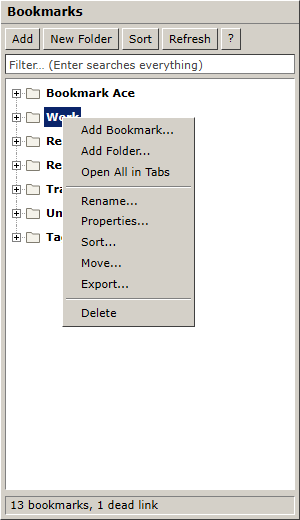
Right-click any folder or bookmark for everything you can do with it:
- Folders: Add Bookmark..., Add Folder..., Open All in Tabs, Rename..., Properties..., Sort..., Move..., Export..., Delete.
- Bookmarks: Open, Open in New Tab, Edit..., Copy URL, Validate, Move..., Delete.
No mouse? Select the row and press the Menu key or Shift+F10.
Unsorted and Tags
- Unsorted holds pages you save with Add page or the bookmarklet until you move them into a folder. The number shows how many are waiting.
- Tags appears once you have tagged a bookmark. Each tag lists its bookmarks. See Tags.
The status bar
The bar at the bottom shows how many bookmarks you have and how many dead links were found. Messages such as "Saved." appear there for a few seconds.
Working offline
If Bookmark Ace cannot be reached, the tree shows the copy it saved last time, with "Offline" in the status bar. You can open bookmarks but not change anything until you are back online.