Private, public and published folders
Every bookmark is private unless you say so. Share a folder with a link if you want to.
Private by default
Nobody but you can see your bookmarks. The administrator can't see them either.
Public bookmarks
Check Public in a bookmark's Add or Edit box to mark it public. Public bookmarks show a small globe in the tree. Marking a bookmark public doesn't show it to anyone yet: it only appears on a published folder's page.
Publish a folder
- Right-click the folder and choose Properties....
- Check Publish this folder.
- Click Save. The box now shows the folder's public address.
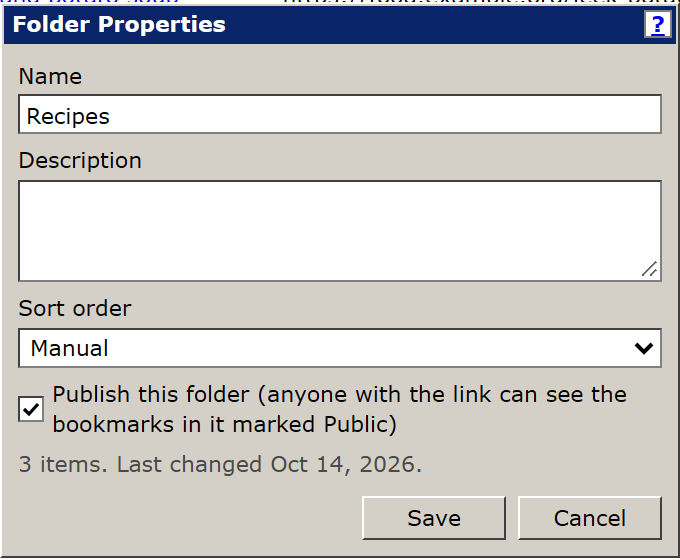
Give that address to anyone you like. They see the folder's public bookmarks, and its sub-folders, on a plain page they can also download. They never see your private bookmarks, tags, visit counts or anything outside that folder.
The address is long and random, so it can't be guessed. To stop sharing, uncheck Publish this folder. The old address stops working; if you publish again you get a new one.
Search engines
Published folders tell search engines not to list them. To allow listing, check Let search engines list my public folders in Settings.