Importing and exporting
Bring bookmarks in from your browser or another service, and make a copy of yours whenever you like.
Exporting from your browser
First save your browser's bookmarks to a file:
- Chrome or Edge: press Ctrl+Shift+O to open the bookmark manager, click the ⋮ menu at the top right and choose Export bookmarks.
- Firefox: press Ctrl+Shift+O, then Import and Backup → Export Bookmarks to HTML....
- Safari: File → Export → Bookmarks....
Bookmark Ace can also read XBEL and OPML files, Raindrop.io CSV exports, and its own backups.
Importing
- Click Import in the toolbar of the Organizer.
- Click Choose File and pick the file.
- Leave Format as "Work it out from the file", and choose where it should go under Put it in.
- Click Read the file.
- Bookmark Ace shows what it found: how many folders and bookmarks, links it can't import (such as browser settings pages), and bookmarks you already have.
- Click Add to my bookmarks. Or click Discard to change your mind.
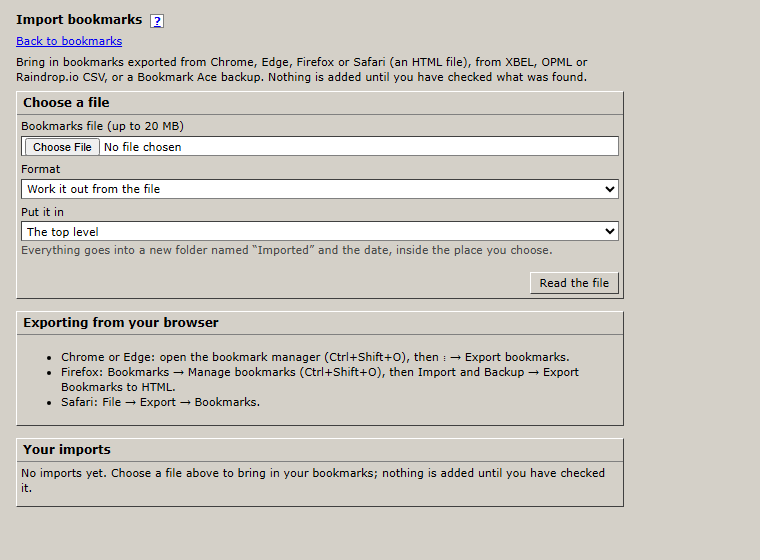
Everything goes into a new folder called "Imported" with today's date, so nothing gets mixed up with what you have. Changed your mind later? Open Import again and click Undo import; the folder goes to the Trash.
Bookmarks you already had are still added. Use Duplicates afterward to tidy them.
Exporting
- Click Export... on a folder's right-click menu, or open Settings and click Export bookmarks.
- Choose a Format: Browser HTML works with every browser; the Bookmark Ace backup keeps every detail.
- Choose What to export: everything, or one folder.
- Click Make the file, then Download when it is ready. Files can be downloaded for 24 hours.
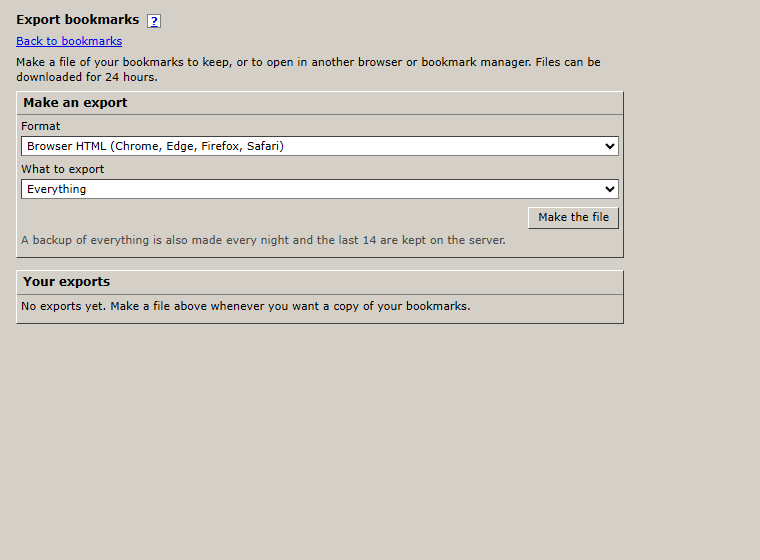
A backup of all your bookmarks is also made every night, and the last 14 are kept.