Folders, moving and sorting
Make folders, move things by dragging or with Move..., and choose how each folder is sorted.
Make a folder
- Click New Folder in the toolbar. You can choose where it goes.
- Or right-click a folder and choose Add Folder... to make one inside it. The extension's panel has no room for a New Folder button, so this is the way to do it there.
Rename a folder
Right-click it and choose Rename..., or select it and press F2.
Move things
- Drag a bookmark or folder onto another folder to put it inside, or between two rows to place it there.
- Without a mouse: right-click (or press the Menu key), choose Move..., pick the folder and the position, and click OK.
Sort a folder
- Once: right-click the folder, choose Sort... and pick an order. Things are rearranged once; you can still drag them afterward.
- Always: right-click the folder, choose Properties... and set Sort order. New items then always land in the right place.
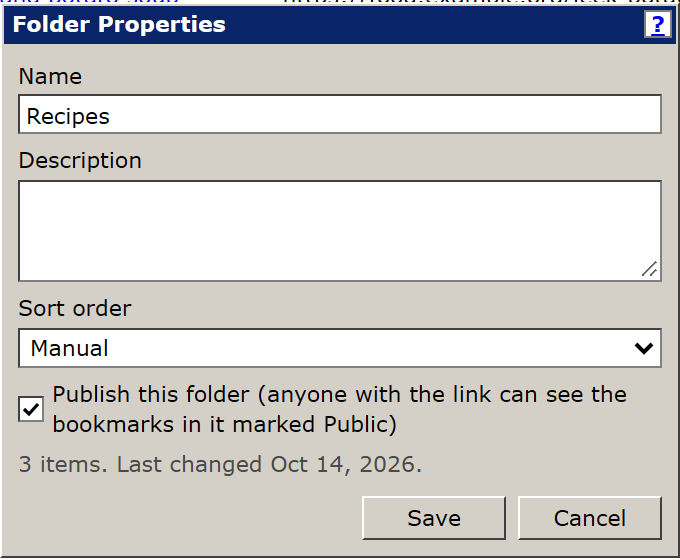
The orders are: Manual (as you arranged them), A–Z, Date added, Last visited, Hits (most visited first) and Waiting for visit (bookmarks you have never opened come first).
Open everything in a folder
Right-click the folder and choose Open All in Tabs.
Delete a folder
Right-click it and choose Delete, or select it and press Delete. The folder and everything in it go to the Trash, where you can restore them for 30 days.
Show how full each folder is
Check Show how many items each folder holds in Settings to see a number after each folder, for example "Work (12)".