Bookmarklets (Safari and other browsers)
Two buttons for your bookmarks bar that open your tree and save pages in any browser, Safari included.
A bookmarklet is a bookmark that does something when you click it. Bookmark Ace has two:
- Bookmark Ace sidebar opens your folder tree in a narrow window beside the page.
- Add to Bookmark Ace saves the page you are looking at.
They work in every browser. Use them if you can't install the extension, for example in Safari.
Install them
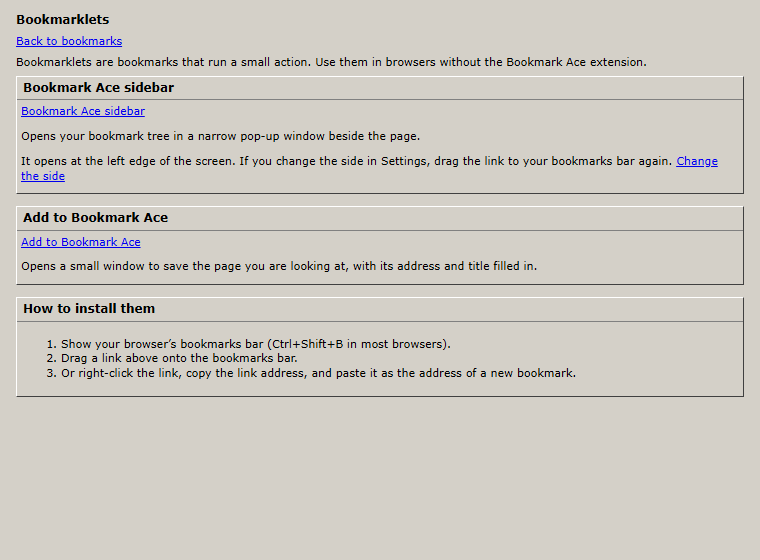
- Click Bookmarklets at the bottom right of the Organizer.
- Show your browser's bookmarks bar (Ctrl+Shift+B in most browsers, Cmd+Shift+B in Safari).
- Drag each of the two links onto the bookmarks bar.
If dragging doesn't work, right-click the link, copy the link address, and make a new bookmark with that as its address.
Use them
- On any page, click Add to Bookmark Ace, check the folder and tags, and click Save.
- Click Bookmark Ace sidebar to open your tree. If nothing happens, allow pop-up windows for this site.
The sidebar window opens on the left of the screen. To have it on the right, change Sidebar position in Settings and drag the link to your bookmarks bar again.
Related
← Installing the browser extension · Folders, moving and sorting →