Adding bookmarks
Every way to save a page: Add page, the right-click menu, the Add button and the bookmarklet.
From the page you are reading
- With the extension: click Add page in the Bookmark Ace sidebar, or right-click the page (or a link on it) and choose Add page to Bookmark Ace.
- With the bookmarklet: click Add to Bookmark Ace on your bookmarks bar, check the details and click Save.
The page goes into Unsorted, or into the folder you chose in Settings under "Pages added with the extension or bookmarklet go into". If you already have that address, the status bar says which folder it is in. After saving with the extension, click Tags... in the status bar to tag it straight away.
By typing it in
- Click the folder it should go in (or select nothing to use Unsorted).
- Click Add in the toolbar, or right-click the folder and choose Add Bookmark....
- Fill in the box. Only the address is needed; if you leave the title empty, Bookmark Ace fetches the page's own title.
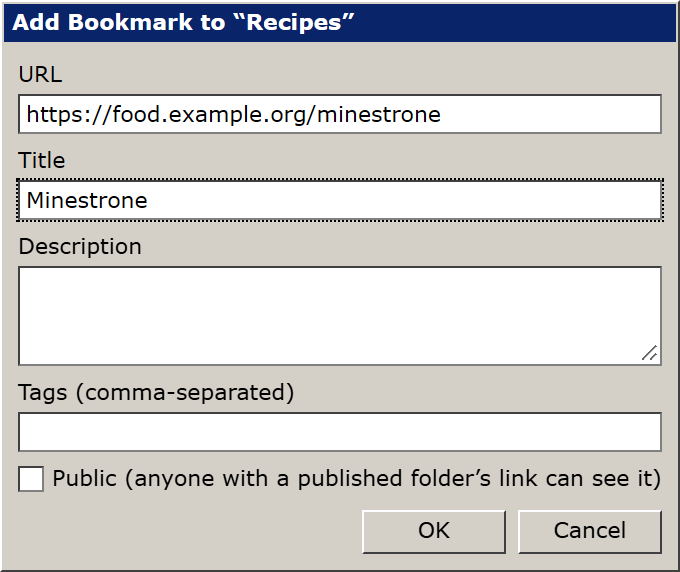
- Tags: type a tag and press Enter; see Tags.
- Public: leave it unchecked to keep the bookmark private. See Private, public and published folders.
Changing a bookmark
Right-click it and choose Edit..., or select it and press F2.