Tags
Label bookmarks with tags, find them by tag in the tree, and tidy your tags.
A tag is a label, such as "recipes" or "work". A bookmark lives in one folder but can have as many tags as you like. Tags are always private.
Add tags to a bookmark
In the Add or Edit box, click Tags and start typing:
- A list of your tags appears. Use Down and Up, then Enter or Tab to choose one.
- Type a comma to use exactly what you typed, for a new tag.
- Backspace in an empty box removes the last tag. Escape closes the list.
Tags in the tree
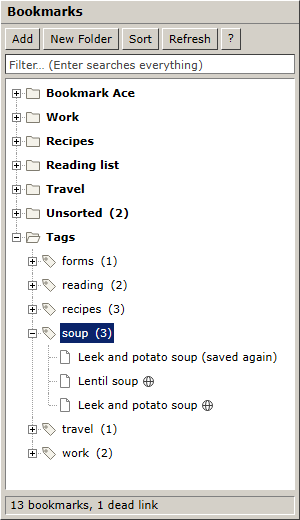
- The Tags folder, after Unsorted, lists every tag with how many bookmarks have it. Open a tag to see its bookmarks.
- Drag a bookmark onto a tag to add that tag. The bookmark stays in its folder.
- Right-click a tag for Open All in Tabs, Rename..., Delete Tag... and Show in Organizer.
- Type
#and a tag in the filter box, for example#recipes, to see only bookmarks with that tag.
You can hide the Tags folder in Settings.
The Tags page
Click Tags in the toolbar of the Organizer.
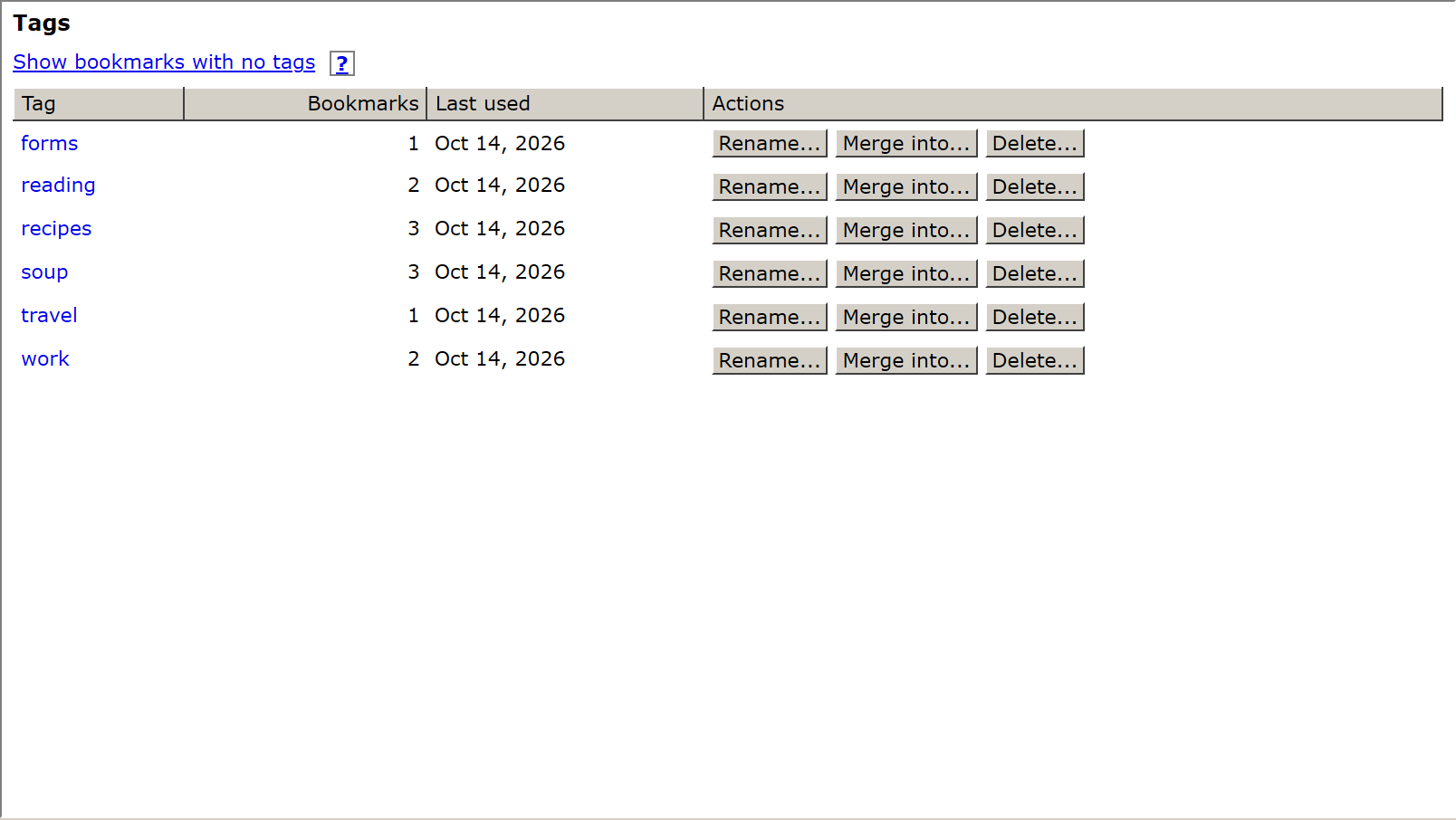
- Click a tag to list its bookmarks.
- Rename... changes the tag on every bookmark that has it.
- Merge into... moves everything from one tag to another, for example "recipe" into "recipes".
- Delete... takes the tag off every bookmark. The bookmarks themselves are kept.
- Show bookmarks with no tags lists the bookmarks you haven't tagged yet.
Tag many bookmarks at once
- In the Organizer's list, check the boxes in the first column. Hold Shift to check a whole range.
- Click Add tags... or Remove tags... in the toolbar.
- Type the tags and click OK.