Settings, two-factor and connected browsers
Change how Bookmark Ace looks and behaves, your password, two-factor sign-in and connected browsers.
Click Settings in the start page's toolbar, or at the bottom right of the Organizer.
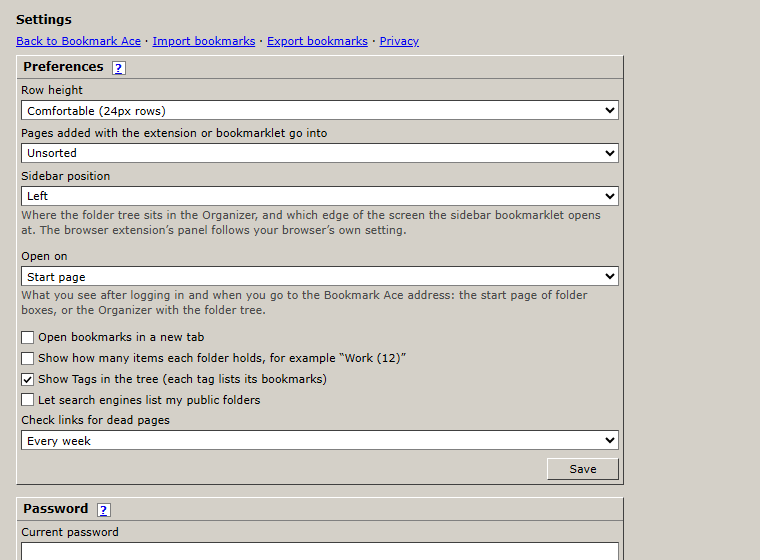
Preferences
- Row height: comfortable (24 px) or dense (18 px, more fits on the screen).
- Pages added with the extension or bookmarklet go into: Unsorted, or a folder you choose.
- Sidebar position: which side the tree sits in the Organizer, and where the sidebar bookmarklet opens.
- Open on: what you see after logging in: the Start page of folder boxes, or the Organizer with the folder tree. See Your start page.
- Open bookmarks in a new tab.
- Show how many items each folder holds.
- Show Tags in the tree.
- Let search engines list my public folders.
- Check links for dead pages: every day, week or month, or never.
Click Save when you are done.
Password
Type your current password and the new one (at least 12 characters) twice, then click Change password.
Two-factor sign-in
Two-factor sign-in asks for a six-digit code from an app on your phone as well as your password, so nobody can get in with your password alone.
- Install an authenticator app, such as Google Authenticator, Microsoft Authenticator or Authy.
- In Settings, click Turn on two-factor sign-in and enter your password.
- Scan the square code with the app, then type the six-digit code it shows.
- Save the recovery codes somewhere safe. Each one lets you in once if you lose your phone.
Connected browsers
Each browser where you connected the extension is listed here. Click Revoke to disconnect one, for example a computer you no longer use.
Under Advanced you can make a token by hand, for other tools or if Connect doesn't work. Copy it straight away: it is shown only once.
Recent activity
The last 20 sign-ins and security changes on your account, with times in UTC. If you see one you don't recognize, change your password.
Related
← Dead links and duplicates · Your account, privacy and deleting it →