Your start page
The page of folder boxes you see after logging in, how to choose what it shows, and how to make it your browser's homepage or new tab.
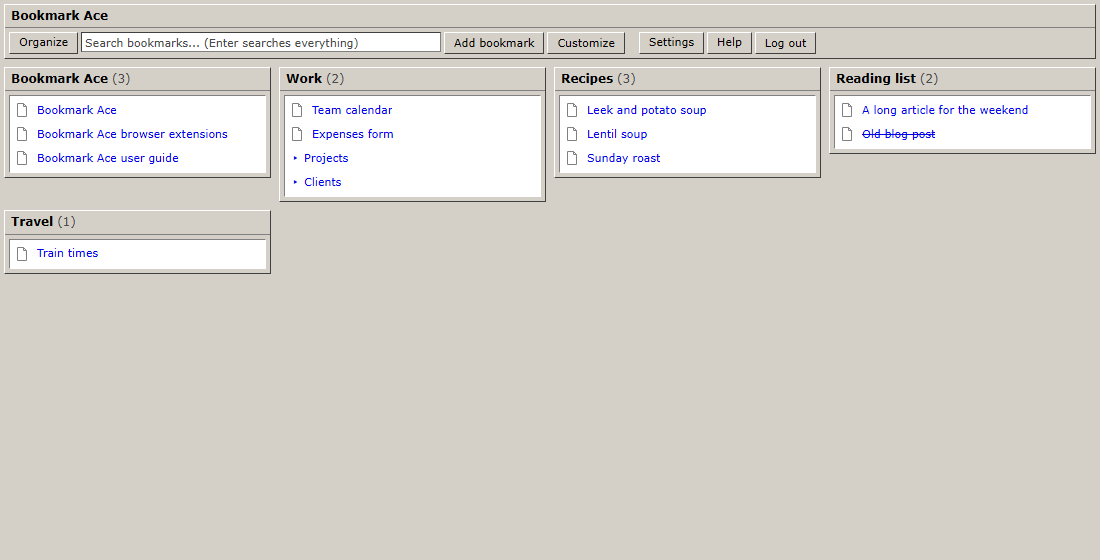
When you log in, Bookmark Ace opens on your start page: a box for each of your top-level folders, with the first links in each. Click a link to open it. Click a box's title to open that folder in the Organizer, the page with the full folder tree.
The toolbar at the top has:
- Organize opens the Organizer, where you file, rename, sort and tidy your bookmarks.
- Search bookmarks filters the links in every box as you type. Type
#and a tag name to show only links with that tag. Press Enter to search all your bookmarks in the Organizer, or Esc to clear the box. - Add bookmark saves a new bookmark. It goes to your capture folder unless you choose another.
- Customize chooses what the page shows (see below).
- Settings, Help and Log out.
A box shows its first 20 links. If a folder has more, the last line says Show all with the number; click it to see them all in the Organizer. Sub-folders are listed after the links with a ▸ in front. A link drawn with a line through it is a dead link: the page could not be found the last time it was checked.
Choose what it shows
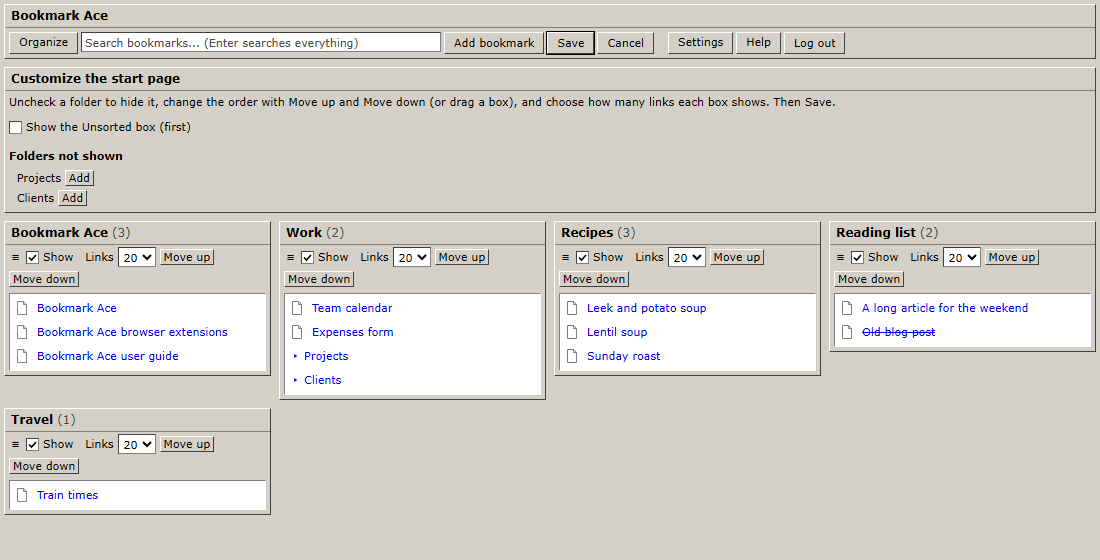
Click Customize. Each box gets a row of controls:
- Uncheck Show to leave a folder off the page.
- Use Move up and Move down to change the order, or drag a box by its ≡ handle or title bar.
- Choose how many links the box shows under Links: 10, 20 or All.
Above the boxes, check Show the Unsorted box to see pages you saved but have not filed yet; it always comes first. Under Folders not shown, click Add next to any folder, including folders inside other folders, to give it a box of its own.
Click Save when you are done, or Cancel to leave things as they were. If you try to leave the page with changes you have not saved, your browser asks you first.
Until you customize it, the start page shows every top-level folder, and new folders appear on it by themselves.
Open on the Organizer instead
If you would rather go straight to the folder tree, open Settings and set Open on to Organizer. You can still reach the start page at any time from the address /start.
Make it your browser's homepage
Your start page's address is https://bookmarkace.com/. Make it your browser's homepage, and Bookmark Ace opens whenever you start the browser or press the Home button.
Chrome
- Click the ⋮ menu at the top right and choose Settings.
- Click On startup, choose Open a specific page or set of pages, then Add a new page.
- Type
https://bookmarkace.com/and click Add. - To get a Home button too: click Appearance, turn on Show home button, choose the box below it and type the same address.
Edge
- Click the … menu at the top right and choose Settings.
- Click Start, home, and new tabs.
- Under When Edge starts, choose Open these pages, click Add a new page, type
https://bookmarkace.com/and click Add. - To get a Home button too: turn on Show home button on the toolbar and type the same address.
Firefox
- Click the ☰ menu at the top right and choose Settings.
- Click Home.
- Next to Homepage and new windows, choose Custom URLs… and type
https://bookmarkace.com/.
Safari
- Choose Safari > Settings… and click General.
- Type
https://bookmarkace.com/in Homepage. - Set New windows open with and New tabs open with to Homepage if you want it there too.
Show it on every new tab
Chrome, Edge and Firefox don't let a website take over the new tab page. If you want your start page there, install the small separate extension Bookmark Ace New Tab from the extensions page. It only replaces the new tab page; installing it is your choice, and the main Bookmark Ace extension never changes your new tab.
After installing it, open a new tab and click Connect. It connects to your account the same way as the main extension (see Installing the browser extension).