Browser extensions
The extension puts your Bookmark Ace folder tree in your browser’s side panel, next to the page you are reading. Download it for your browser, then follow the steps below.
Version 1.3.0. Safari or another browser? Use the Bookmarklets
The extension shows your folder tree in your browser's side panel, next to the page you are reading, and adds Add page and a right-click Add page to Bookmark Ace. It is not in the browser shops yet, so it is installed from a download.
Chrome, Edge, Brave or Opera
-
Open Browser extensions and click Download for Chrome and Edge.
-
Find the downloaded zip file, right-click it and choose Extract All... (on a Mac, double-click it). Keep the extracted folder somewhere it will stay, for example your Documents folder.
-
Type
chrome://extensionsin the address bar (in Edge:edge://extensions) and press Enter. -
Switch on Developer mode (top right in Chrome, left side in Edge).
-
Click Load unpacked and choose the extracted folder.
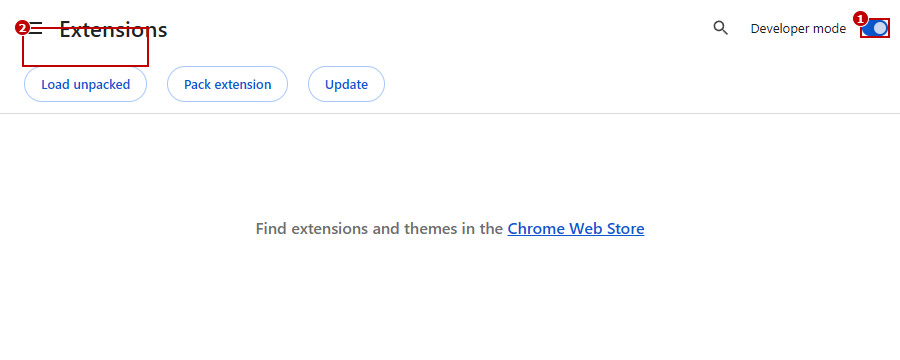
In Edge the page looks different, but it has the same Developer mode switch and Load unpacked button.
-
Click the jigsaw-piece button next to the address bar and pin Bookmark Ace, so its button is always visible.
Firefox
- Open Browser extensions and click Download for Firefox, then extract the zip file.
- Type
about:debugging#/runtime/this-firefoxin the address bar and press Enter. - Click Load Temporary Add-on... and choose the file
manifest.jsoninside the extracted folder.
Firefox removes add-ons loaded this way when it closes, so repeat step 3 each time you start Firefox, until Bookmark Ace is in the Firefox add-ons shop.
Connect it to your account
- Click the Bookmark Ace button in your browser's toolbar (or press Alt+Shift+B). The side panel opens and says "Not connected".
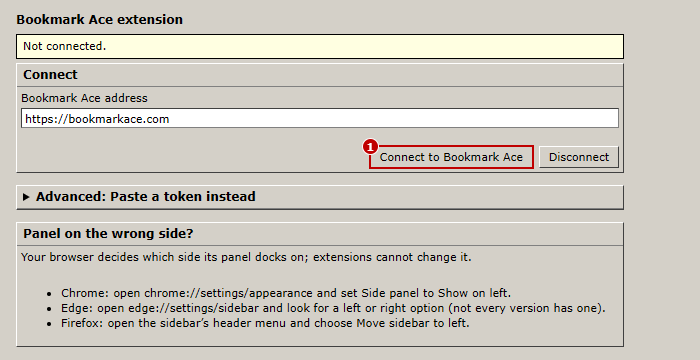
- Click Connect.... The extension's options open with the address
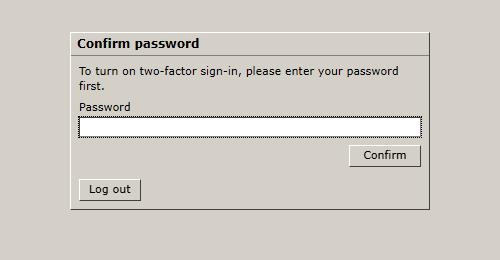
https://bookmarkace.comalready filled in. - Click Connect to Bookmark Ace. Log in if you are asked to.
- Click Allow.
The panel now shows your tree. Each browser you connect is listed in Settings under Connected browsers, where you can disconnect it.
Using the side panel
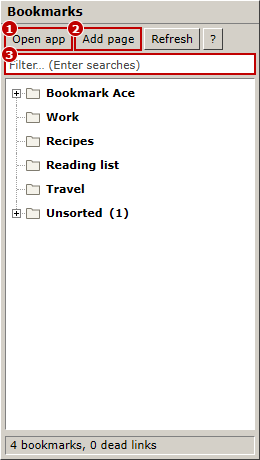
- Open app opens the full Bookmark Ace page in a new tab.
- Add page saves the page in the current tab. You can also right-click a page or a link and choose Add page to Bookmark Ace.
- Refresh loads your bookmarks again. To make a folder, right-click a folder and choose Add Folder....
- Click a bookmark to open it in the current tab.
- The browser decides which side the panel sits on. The options page explains how to move it.
Bookmark Ace New Tab (optional)
A second, smaller extension that shows your start page on every new tab. Install it only if you want that: the main extension never changes your new tab page. It is installed the same way as the main extension, then connected from its own Connect button. More about the start page.
Version 1.0.0.