Getting started
Your first ten minutes: find your way around, bring in your bookmarks and add the sidebar to your browser.
Bookmark Ace keeps all your bookmarks in one folder tree. You can open it on its own page or beside any web page in your browser's sidebar, on any computer.
The start page
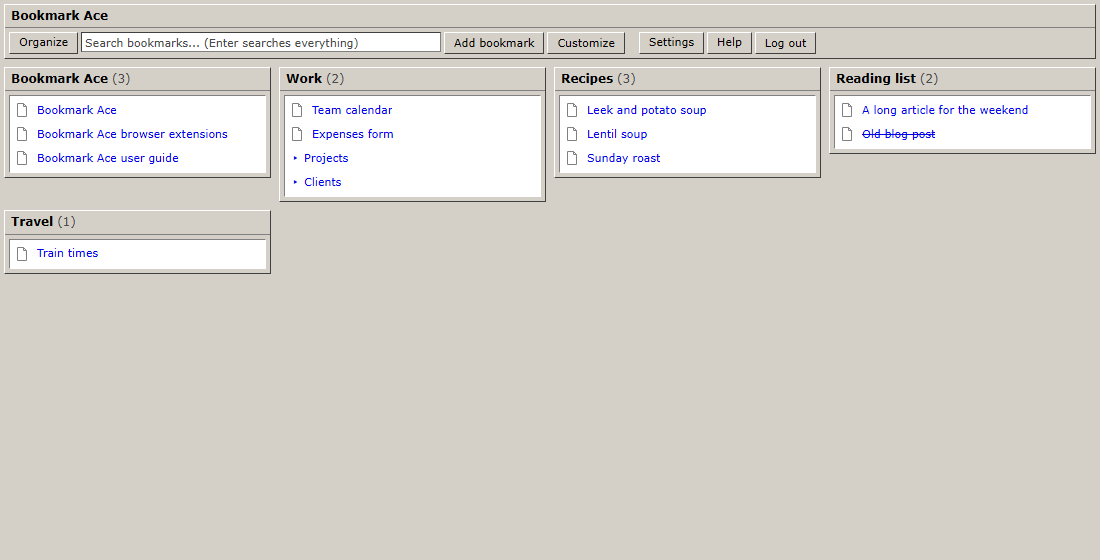
When you log in you land on your start page: a box for each top-level folder with its first links, and a search box. Click a link to open it. Click Organize to file and tidy your bookmarks, and Customize to choose which folders appear. See Your start page.
The Organizer
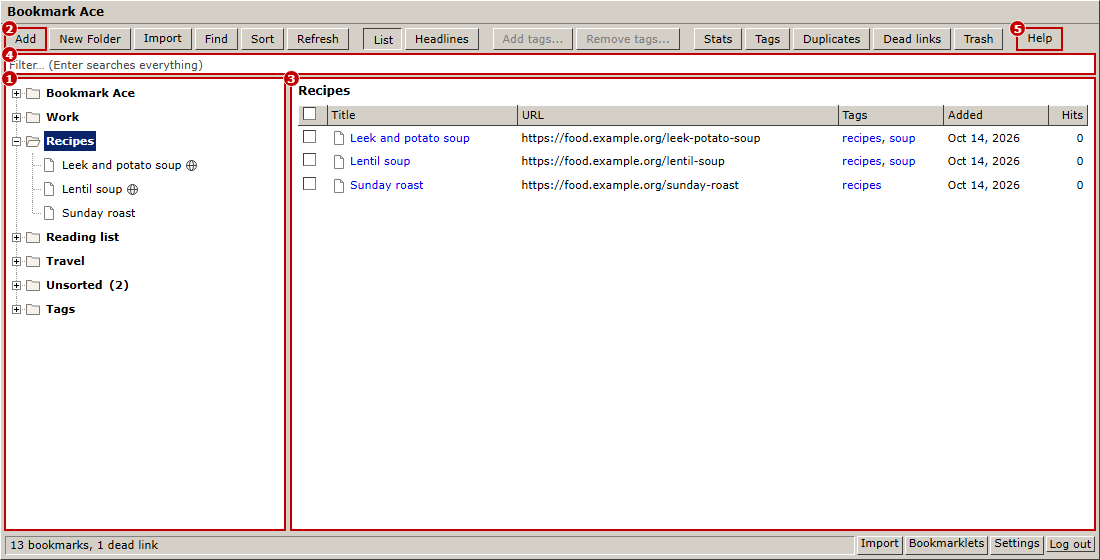
The Organizer is where you file, rename, sort and tidy. It has these parts:
- The folder tree. Click a folder to open it; click a bookmark to visit the page.
- The toolbar. Add a bookmark, make a New Folder, Import bookmarks, and switch views.
- The list of what is in the selected folder.
- The filter box. Type to find bookmarks in the tree.
- Help opens these pages.
Settings, Bookmarklets and Log out are at the bottom right.
Step 1: bring in your bookmarks
- In your browser, save your bookmarks to a file (see Importing and exporting).
- In Bookmark Ace, click Organize, then Import in the toolbar.
- Choose the file and click Read the file.
- Check what was found, then click Add to my bookmarks.
Your bookmarks arrive in a new folder called "Imported" with today's date. Drag folders out of it to wherever you like.
Step 2: put Bookmark Ace in your browser's sidebar
- Chrome, Edge or Firefox: install the extension. See Installing the browser extension.
- Safari or any other browser: use the bookmarklets. See Bookmarklets.
Step 3: save a page
On any web page, click Add page in the Bookmark Ace sidebar. The page is saved in Unsorted until you move it into a folder.
The Welcome window
When you first log in, a Welcome to Bookmark Ace window on the start page lists these steps and checks each one off as you do it. Click Hide this when you no longer need it. You can open it again from this page: Show the Welcome window.